The essential AutoCAD shortcuts every beginner must memorize are: L (Line), C (Circle), E (Erase), M (Move), CO (Copy), TR (Trim), and Z + E (Zoom to Extents). These commands cover 80% of daily drafting tasks in architectural drawing production. Learning them as muscle memory is the single fastest way to improve your speed in professional CAD drafting environments. Advanced shortcuts like DIMSTYLE, XREF, and BHATCH become essential as you move into permit drawing services and full construction document sets.
Top 10 AutoCAD Tips for Architectural Drafting That Every Beginner Must Know
This guide covers everything that matters most from day one: learning keyboard shortcuts like L, C, TR, and CO to work at professional speed; setting drawing units correctly before touching anything else; and organizing layers using AIA standards so every drawing file is clean, readable, and contractor-ready.
It then walks through OSNAP precision settings to eliminate costly drafting errors, the critical difference between Model Space and Paper Space for producing print-ready permit and construction packages, and how Blocks and Xrefs keep complex multi-discipline projects coordinated without duplicating work.
Rounding out the essentials: dimension styles, plot setup with CTB files, and smart file-saving habits that protect your work and reflect professional-grade output quality.
Whether you're building toward a career in architectural drafting services, learning to produce residential construction drawings, or understanding how professional CAD design teams operate these 10 fundamentals are where every serious drafter starts.
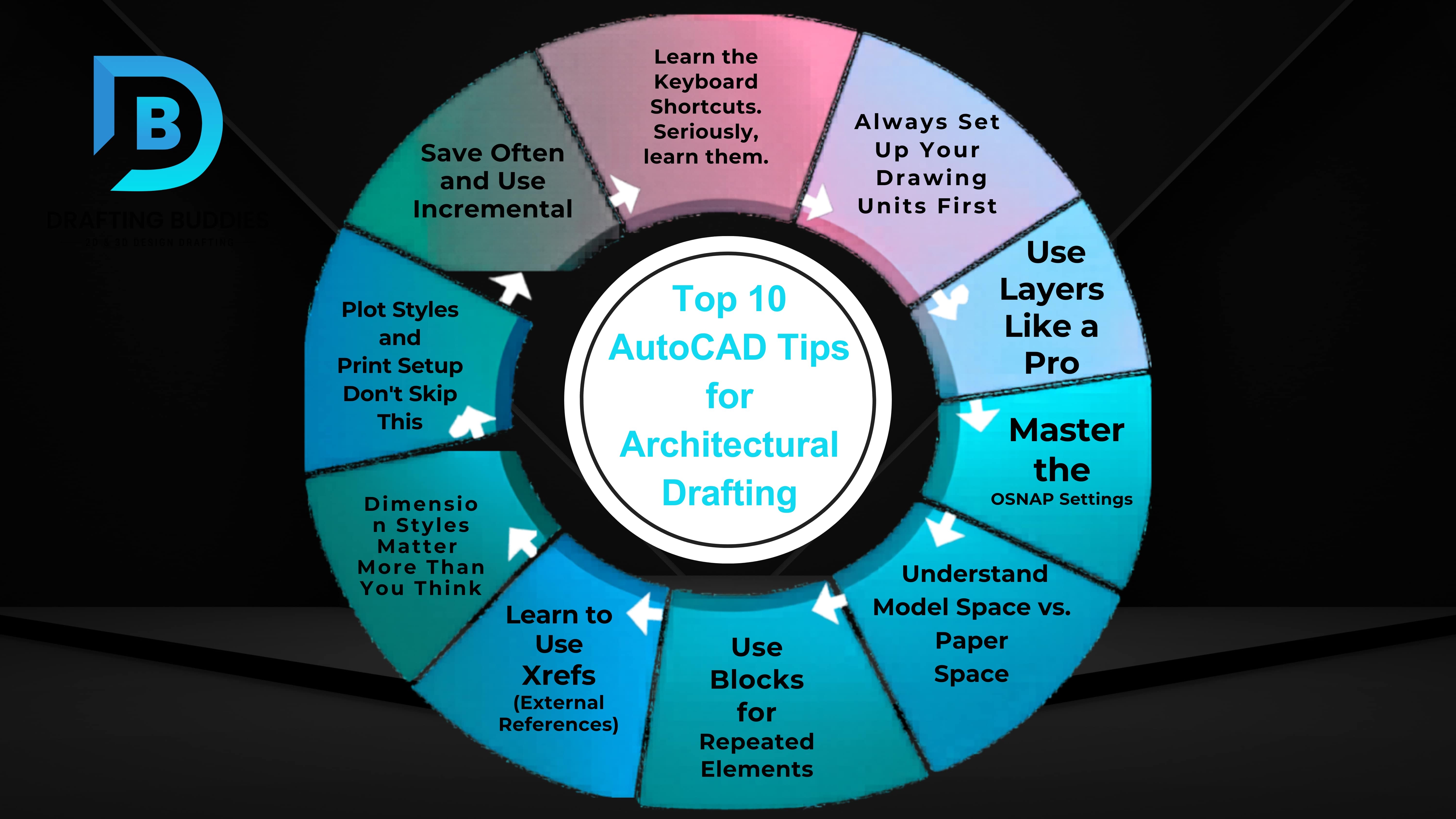
If you're just starting in architectural drafting, AutoCAD can feel like you've been handed the cockpit controls of a commercial jet. There are hundreds of tools, settings, and commands staring back at you, and it's not always obvious where to begin. The good news? You don't need to master everything at once. A handful of the right habits and techniques will take you from confused beginner to confident drafter faster than you'd expect.
Whether you're working on residential drafting services, construction drawings, or just learning the ropes for a CAD design career, these ten tips will save you hours of frustration and set you up for long-term success.
1. Learn the keyboard shortcuts. Seriously, learn them.
The single biggest difference between a slow drafter and a quick one isn't talent; it's shortcuts. AutoCAD was built around keyboard commands, and the people who use it most efficiently barely touch the ribbon menus.
Start with the essentials: L for Line, C for Circle, E for Erase, M for Move, CO for Copy, TR for Trim, and Z + E to zoom to extents. Once these become muscle memory, your AutoCAD 2D drawing workflow speeds up dramatically. In professional architectural CAD drafting environments, time really is money. Firms offering outsourced CAD drafting services expect their drafters to work fast and accurately.
2. Always, Always Set Up Your Drawing Units First
One of the most common beginner mistakes in AutoCAD drafting is starting to draw before configuring units. Go to Format > Units and make sure your drawing is set to architectural (feet and inches) if you're working in imperial or decimal for metric. This matters enormously when you're creating building drawings or floor plan drafting services output that will be handed off to a contractor or printed to scale.
Getting this wrong early means everything downstream from permit drawing services to construction drawing services will need to be corrected. Set it once at the start of every project.
3. Use Layers Like a Pro
Layers are the backbone of professional 2D drafting in architecture. A well-organized layer system means you can turn off walls to see electrical runs, hide annotations while reviewing structure, or isolate MEP components without cluttering your view.
Follow the AIA (American Institute of Architects) layering standards as a starting point. You'll create layers for walls, doors, windows, dimensions, text, electrical, plumbing, and more. This becomes critical when working on complex projects like MEP CAD drafting services or HVAC CAD drawings, where multiple disciplines share the same drawing file.
Use consistent naming conventions like A-WALL, E-LITE, and M-DUCT, so anyone picking up your file knows exactly what they're looking at.
4. Master the OSNAP (Object Snap) Settings
Precision is everything in architectural drafting services. You cannot afford to draw a wall that almost connects to another wall in construction; "almost" creates real problems on site. Object Snaps (OSNAP) are AutoCAD's way of snapping your cursor to exact points: endpoints, midpoints, intersections, perpendicular points, and centers.
Turn on your most-used snaps and leave them running in the status bar. For architectural AutoCAD drawings, Endpoint, Midpoint, Intersection, and Perpendicular are your daily essentials. Using OSNAP properly ensures your 2D drafting services output is clean, accurate, and construction-ready.
5. Understand the Difference Between Model Space and Paper Space
This confuses nearly every beginner, but it's a concept you need to get comfortable with early. Model Space is where you draw everything at a real-world scale. A 30-foot wall is drawn 30 feet long. Paper Space (layouts) is where you arrange your drawing on a sheet, set viewports, add title blocks, and control what gets printed at what scale.
If you're producing permit drawing services output or residential construction drawings, you'll work in both spaces constantly. Professional CAD drafting service companies rely on a clean paper space setup to deliver polished, print-ready sheets to clients every time.
6. Use Blocks for Repeated Elements
Doors, windows, fixtures, trees, north arrows, title blocks, and anything you'll use more than once should be a block. A block is a reusable symbol you insert wherever you need it. Edit the block definition once, and every instance in the drawing updates automatically.
This is especially useful in residential drafting services where you might be placing the same window type across twenty units of a multi-family project. It's also central to how professional teams speed up shop-drawing services and fabrication drawing services workflows. Build a personal library of blocks early in your career; it will pay dividends for years.
7. Learn to Use Xrefs (External References)
In a real production environment, projects are rarely contained in a single file. The architectural floor plan might be one file, the structural grid another, and the site plan a third. Xrefs allow you to reference external drawing files inside your current drawing, so the structural engineer works on their file, and you work on yours, and both stay linked and up-to-date.
This is standard practice in architectural CAD drafting services for larger projects. Understanding Xrefs also becomes essential when working on as-built drawings, electrical as-built drawings, or as-built floor plans, where you're updating drawings to reflect what was actually built in the field.
8. Dimension Styles Matter More Than You Think
Messy, inconsistent dimensions make drawings hard to read and reflect poorly on your work. AutoCAD's dimension styles manager (DIMSTYLE command) lets you define everything: text height, arrow size, extension line offset, scale factor, and more.
Create a dimension style tuned to your typical plot scale before you start dimensioning. For architectural construction drawing work that goes out for permits or to a general contractor, your dimensions need to be crisp, legible, and consistent with your title block and overall sheet presentation. Many firms delivering professional CAD design services use standardized templates with pre-loaded dimension styles so every drawing looks coherent from day one.
9. Plot Styles and Print Setup Don't Skip This
A beautiful drawing that prints badly is still bad. Learning how to configure your plot settings, pen weights, CTB or STB plot style tables, paper size, scale, and viewport setup is a skill that separates hobbyists from professionals.
In construction drawing services and permit drawing services, output quality is a direct reflection of your credibility. If your drawings print with lines that are all the same weight, it's nearly impossible to read hierarchy: what's a wall, what's a hidden line, and what's a dimension? Set up a CTB file with logical lineweights early and use it consistently across your projects.
10. Save Often and Use Incremental File Names
This one sounds basic, and it is, but experienced drafters have learned it the hard way. AutoCAD can crash. Files can become corrupted. Clients change their minds and want to go back to a previous version. The habit of saving frequently (Ctrl+S) and maintaining incremental file names like ProjectName_v01.dwg and ProjectName_v02.dwg will save you from disaster more than once.
Also, configure AutoCAD's autosave to every 5-10 minutes. You'll find the autosave files in the TEMP folder if things go sideways. Whether you're working in-house or operating as part of an outsourced CAD drafting team, protecting your work is non-negotiable.
Wrapping Up
Getting good at AutoCAD for architectural drafting is a marathon, not a sprint. But these ten fundamental shortcuts, units, layers, OSNAP, model vs. paper space, blocks, Xrefs, dimension styles, plot setup, and file management form the foundation on which everything else is built.
Whether you're working toward a career in architectural drafting services, learning to produce residential construction drawings, or trying to understand how professional CAD design services teams operate, mastering these basics will give you a genuine edge. Start practicing them on real projects, ask questions, and don't be afraid to look things up as you go. The best drafters in the business are still learning something new every week.
Recent Blogs
FAQs:
You Ask, We Draft